
A WordPress website can look fine while small problems build in the background. A form may stop sending messages. A plugin update may affect one page. A backup may exist but never have been tested. Visitors usually notice these issues before the owner does, because they experience the site at the exact moment they need it.
A WordPress website maintenance checklist gives you a simple routine for protecting forms, updates, backups, and the customer journey.
Regular WordPress maintenance is a practical business habit. It protects the website, keeps important paths working, and gives you a chance to improve pages before they become outdated. This checklist is written for small business owners who want a clear routine without turning website care into a full-time job.
Weekly checks that take only a few minutes
Open the main pages
Visit the home page, key service pages, contact page, and any important landing pages. Look at them on a phone as well as a desktop. Check for broken layouts, missing images, strange spacing, or buttons that no longer work.
Test the enquiry route
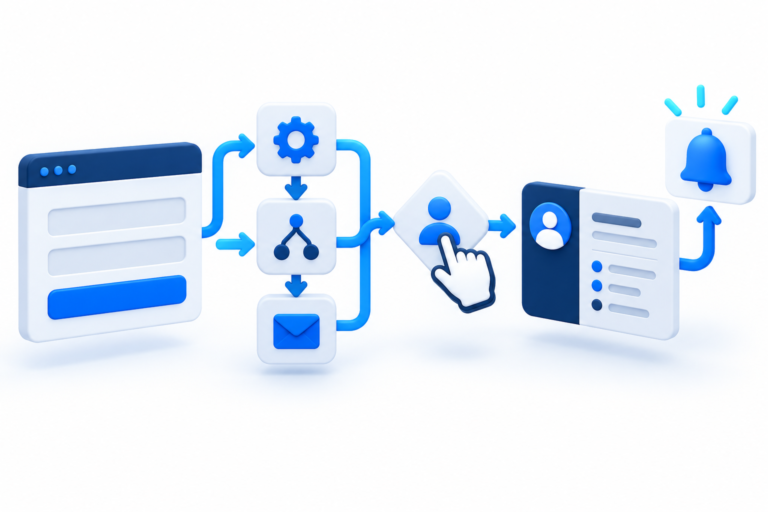
Send a test enquiry through the main form. Confirm that the visitor sees a useful confirmation and that the right person receives the message. If the form creates a CRM record or sends an automated reply, check that step too.
Review security notifications
Look for warnings from WordPress, your host, security plugin, or backup service. Do not ignore repeated login alerts or notices about outdated software. A small warning is easier to handle before it becomes a compromised account.
Monthly WordPress maintenance
Update carefully
Keep WordPress core, plugins, and themes current, but do not treat the update button as the whole maintenance process. Take a fresh backup, apply updates, and test the important pages afterward. If the site has custom code or several integrations, update during a quiet period.
Check backups and restoration
A backup is useful only when it can be restored. Confirm that backups are running, stored away from the live site, and available for the period you need. At sensible intervals, test a restoration on a staging site or ask your developer to verify the process.
Review users and access
Remove old users and reduce permissions where possible. Not everyone needs administrator access. Use strong, unique passwords and two-factor authentication for important accounts. Keep a private record of who owns the domain, hosting, analytics, and WordPress installation.
Check speed and media
Large images, unused plugins, and old scripts can make a site slower over time. Review the biggest pages and compress new images before uploading them. If performance falls suddenly, look for a recent change before adding another optimization plugin.
Quarterly checks that protect the business
Review content accuracy
Check opening hours, service areas, contact details, prices, team information, testimonials, and calls to action. Remove outdated offers and make sure old articles still describe the service accurately. A short content review can prevent a surprising number of avoidable enquiries.
Review search visibility
Use Search Console to look for pages with impressions but few clicks, indexing errors, or search queries that reveal what visitors are trying to find. Improve the page that already has some visibility before creating five more pages around the same subject.
Check links and redirects
Important internal links should lead to the right page. External links should still be useful. If a page has moved, use a proper redirect rather than leaving visitors and search engines at a dead end.
Review legal and privacy details
Make sure your privacy notice, cookie settings, contact details, and any consent wording match how the business currently collects and uses information. Ask for specialist advice when your business handles sensitive data or operates across several jurisdictions.
What should be handled by a developer?
Owners can handle content checks and simple tests. Technical work deserves the right level of care. A developer can investigate recurring errors, conflicts between plugins, failed emails, slow database queries, security incidents, broken integrations, and changes that affect the design.
If the same issue appears more than once, record what happened and when. Good maintenance is easier when a developer can see the pattern instead of trying to recreate a one-off problem.
A simple maintenance routine is better than a heroic rescue
You do not need to spend every week inside WordPress. Set a short recurring check, keep your accounts organised, and make sure someone is responsible for technical problems. The goal is a secure, dependable website that keeps doing its job while you run the business.
For a deeper review of an existing WordPress site, explore WordPress and CMS development support or request a practical project estimate.